
GETTING STARTED:
Requirements:
In order to successfully run ‘ Our Divi Layouts ‘ on your website your server environment will have to meet certain PHP and WordPress minimal version requirements.
Essentials:
-PHP 5.4.X or higher
-In order to install our Child theme or Layouts, you must first Purchase Elegant themes Membership and Download Divi theme.
-This Divi Layouts is fully compatible with Divi v4+, just make sure that you’ve installed the latest version of Divi theme. Some features may not work correctly if the Divi theme version is less than v4.3.2.
Installation Documentation:
Files With The Product:
After you have Un-zip the file you will see :
1. →Product Files : This Folder Have A. ” All_Styles_Library ” JSON that will include all styles JSON in one file that you can import in ‘ Divi Library ‘ B. “ DiviThemeBuilder_Example “ JSON that will be imported under Divi – > Theme Builder C. license.txt file
2. → ‘ Supplementary Zip ‘ will include A. ‘ Individual Styles Library Json‘ Files B. Supporting document like [ ‘ Installation Guide Files ‘ ]
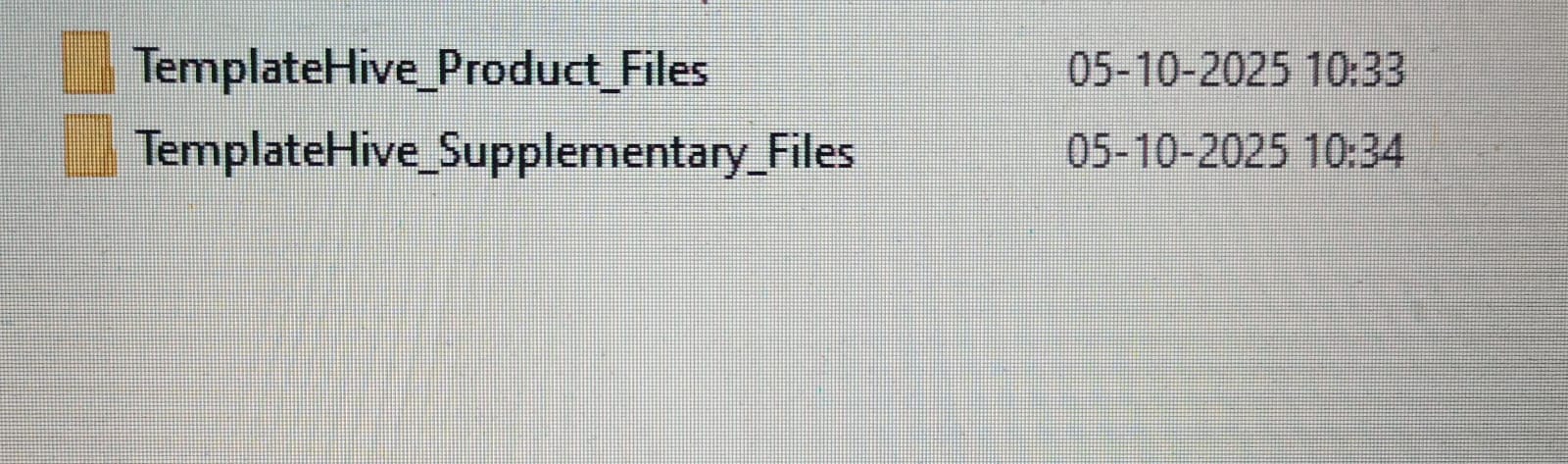
What Will You Get Under Layout Pack Folder ?
You Will Find 2 Zip Namely as A. TemplateHive_Product_Files B. TemplateHive_Supplementary_Files
Step 2 :
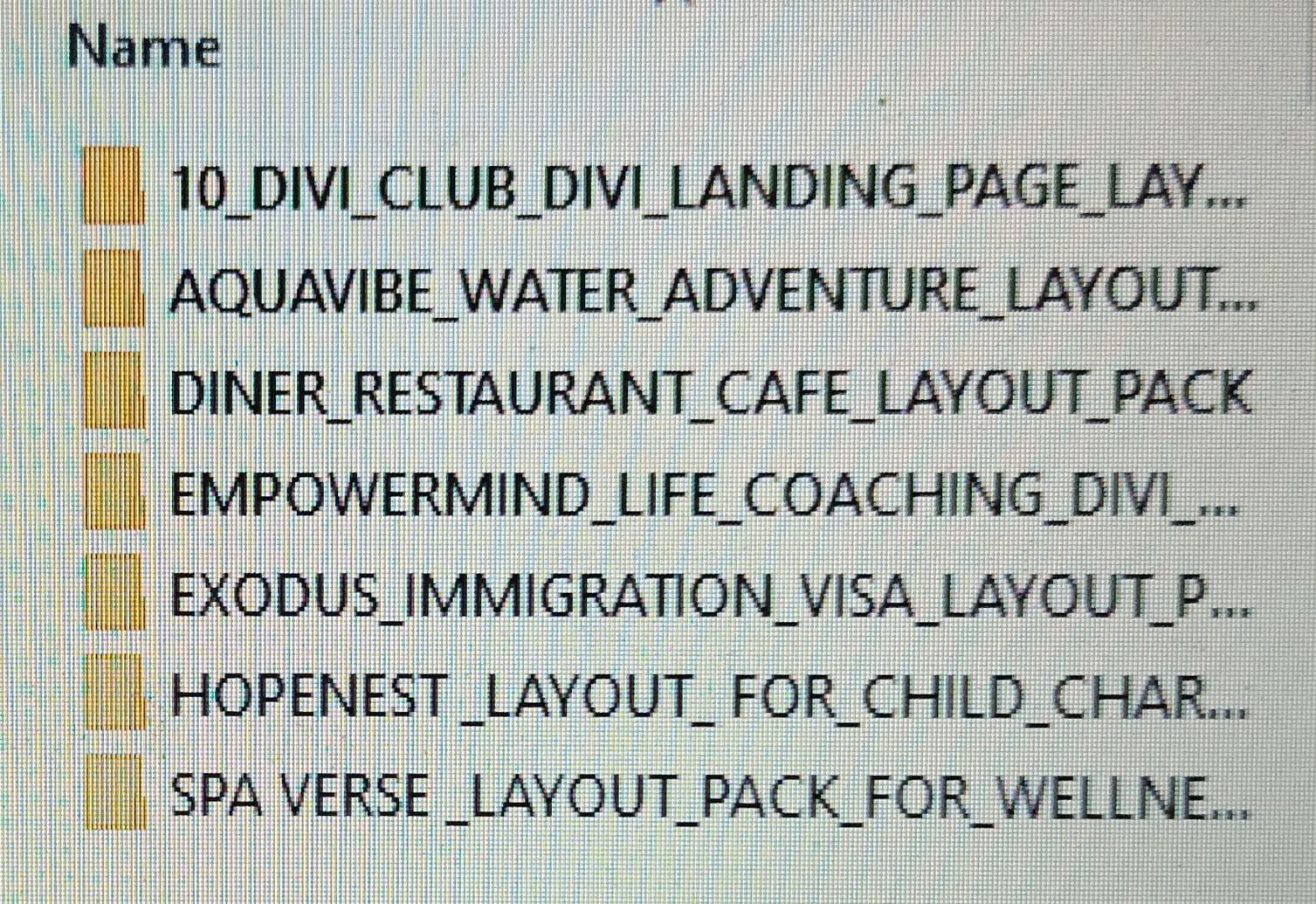
You Can Unzip Each to Find Folder Listed as Per Each Product Name
Step 3 :
Here Will Take Example of One Product
You Need Find Folder As Per The Initials of Layout Pack Name ie If It Is ‘ AQUAVIBE – WATER ADVENTURE LAYOUT PACK ‘ Navigate to Folder AQUAVIBE
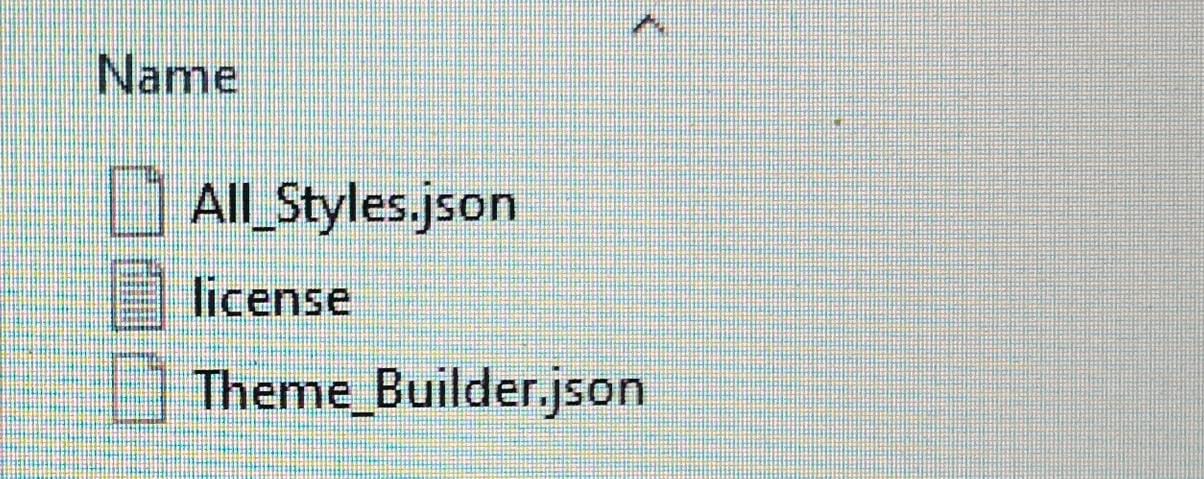
Expand Folder AQUAVIBE You Will Find : –
1.Product Files : This Folder Have
A. ” All_Styles_Library ” JSON that will include all styles JSON in one file that you can import in ‘ Divi Library ‘
B. “ DiviThemeBuilder_Example “ JSON that will be imported under Divi – > Theme Builder
C. license.txt file
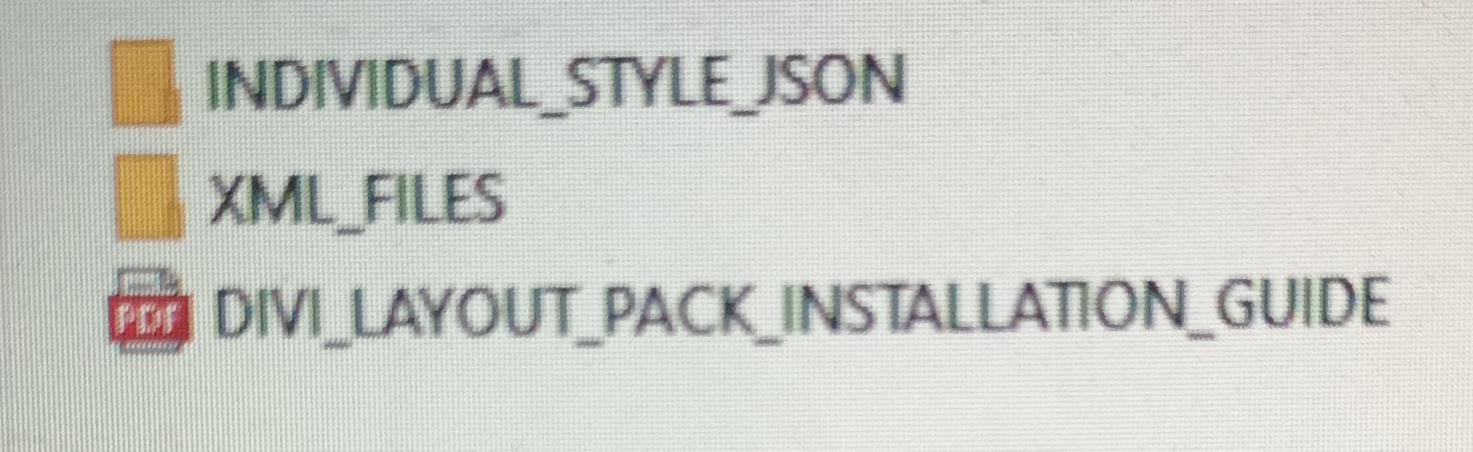
Same Way When You Unzip Supplementary Zip Folder You Will Find Folder For Each Product Consisting Required Files
A. ‘ Individual Styles Library Json‘ Files
B. Supporting document like [ ‘ Installation Guide Files ‘ ]
C. XML Files if applicable
Installation Guide :
Step 1:
Import ‘ All_Styles_Library_Json ‘ Files For Layout Pack Using Divi Library Method
A. Make sure you have the latest “ Divi Theme installed “ and activated
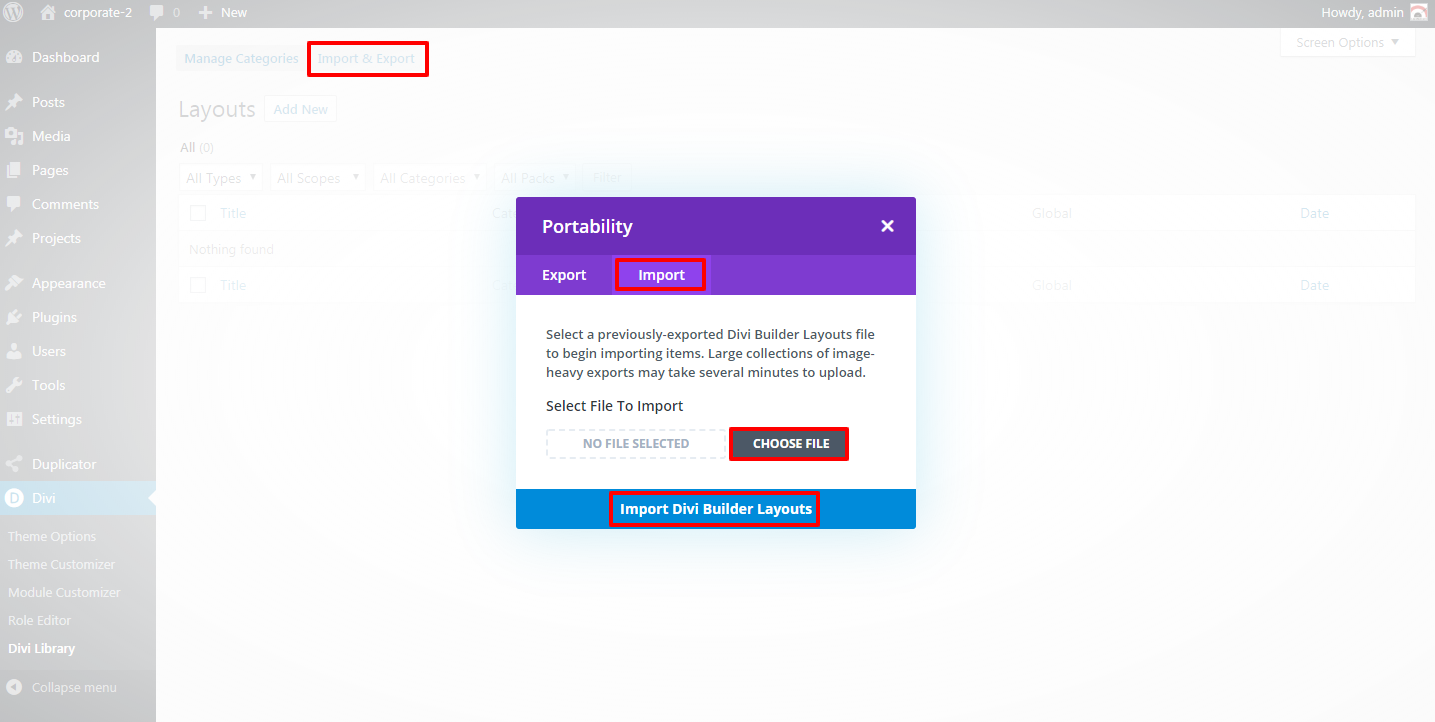
B. Import product ‘ Library Layout (.json) File ‘ Thats is ‘All_Styles_Library_Json ’ under ‘‘ Divi -> Divi Library -> Click Import & Export
Use ” All_Styles_Library_Json “ if you want to import all styles in one shot under ‘ Divi Library ‘

D. Go to Pages → Add New and give your page a title
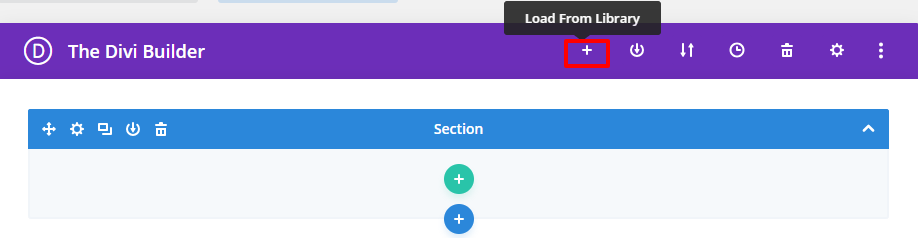
→ Click on Use ‘ The Divi Builder ‘
→ Click on ‘ + ‘ Icon -> Go To “ Your Saved Layouts ”
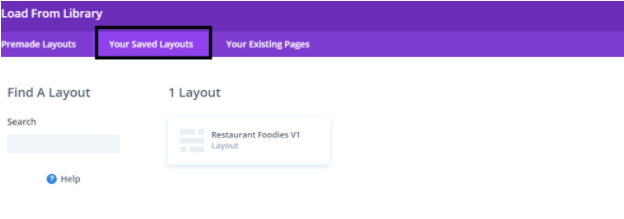
E. After selecting the layout ‘ Publish Page ‘ and see at the front end.
F. Wait until the layout is imported (it can take up to several minutes) Don’t forget to publish/save your page.
G. All icons and images will be automatically imported with the .json file
Step 2:
Import ‘ ThemeBuilderLayout ‘ JSON Available In The Product zip Files And Is Mandatory.
A. You need import ‘ Theme Builder ‘ json available in the supplementary zip and is mandatory.
Now Hover over to Divi > Theme Builder and click on ‘ Portability ‘ Button at the top right corner.
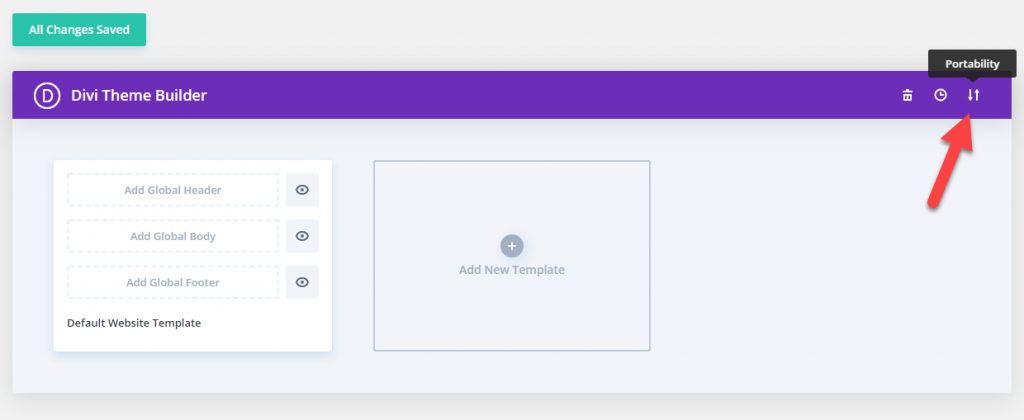
B. Now click on the Import button and then Choose the ‘ Theme Builder JSON ‘ file from the Supplementary Package you’ve downloaded and Click on Import Divi Theme Builder Templates Button.

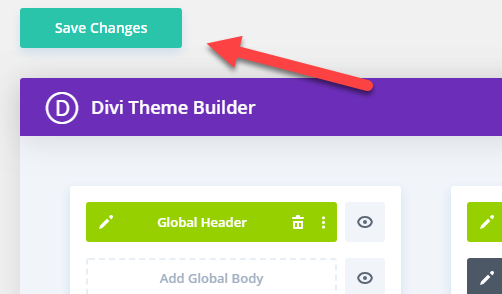
C. After the Completion of the Importing Process, you can now click on the Save Changes button.
Step 3:
Creating Pages In Divi or Loading Required Pages From Divi Library That We Already Imported in The Previous Step
→ Click on Use ‘ The Divi Builder ‘
→ Click on ‘ + ‘ Icon -> Go To “ Your Saved Layouts ”
Select one that you want to load on your page and import.
For example if you want to load ‘ Home V1 ‘ select that from the ‘ Saved Layouts ‘ under Divi Library
B. After selecting the layout ‘ Publish Page ‘ and see at the front end.
C. Wait until the layout is imported (it can take up to several minutes) Don’t forget to publish/save your page.
D. Likewise you need to repeat same procedure and load all the ‘ Layouts ‘ that you need from ‘ Saved Layouts ‘ under Divi Library
Step 4:
Creating Menu and Set HomePage

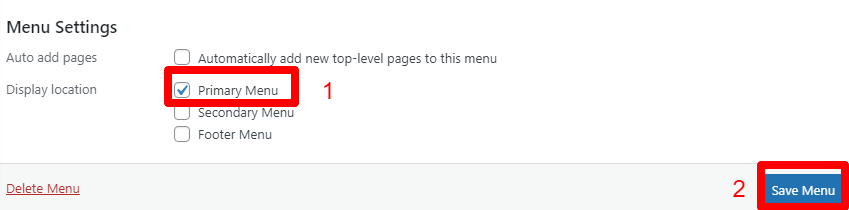
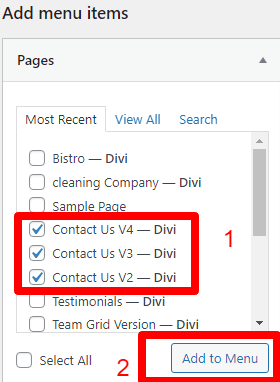
E. You can do the required setting as needed.
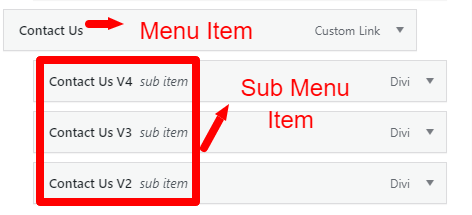
That is you can add pages that you need set as ‘ Menu Item ‘ and one as ‘ Sub Menu Item ‘
Like in example shown below have added ‘ Contact Us ‘ as menu item and ‘ Contact Us V2 to V4 ‘ as sub-menu item
F. Save the changes.
Step 5:
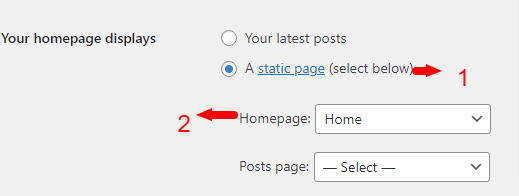
Set HomePage
→ Select ‘ Radio Button ‘ as static page
→ Select HomePage from the drop-down that you need to set for your website like in our case it is ‘ Home ‘
Step 6 (Optional) :
How To Import Post and Project Data ?
One who have purchased the ‘ Product ‘ from ‘ Elegant Themes ’ might have ‘ XML ‘ files in the Supplementary Zip.You can either use ‘ Demo Data ‘ provided as ‘ XML’ files or can use your own ‘ Demo Data ‘ .
There is usually 3 XML files ie Media,Post, and Project , but all 3 files is not needed in all the layout pack. You might have either of files mentioned or all the XML files depending upon the requirement in the supplementary folder
That is you have to import ‘ Media, Project, and Post ‘ as per the steps mentioned below .
Steps :
If you are importing ‘ Layout Pack ‘ on the fresh divi installation you might need import XML
For ‘ XML‘ files you need to import it under Tools -> Import -> WordPress Import. You can ‘ skip this step ‘ if your site already have ‘ Posts ‘ added or loaded in WordPress Admin under “ All Posts ” .
Check step for ‘ XML’ import from ‘ Video Length 2:35 Minutes ‘ below :
(Optional) :
How To Import Widget Data If Provided For Any Product ie wie File Available in Supplementary File
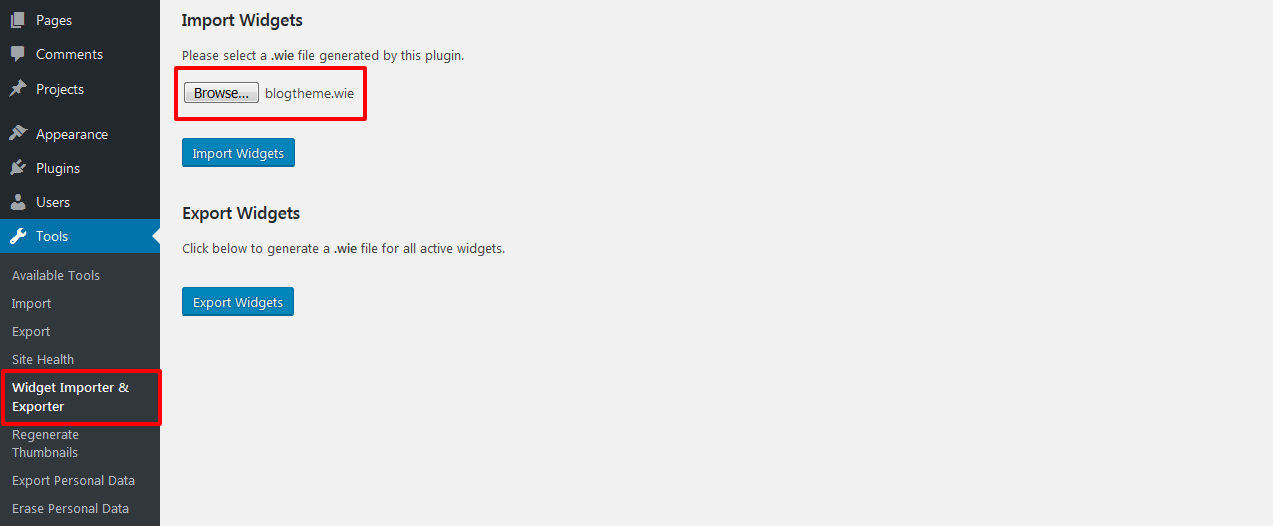
Import Widget Data ie wie file available in supplementary file . You can use default widgets OR you can delete old widget data and import widget data using plugin Widget Importer & Exporter Plugin.‘
A. You need Install Plugin
Install Widget Importer & Exporter Plugin that can be done by going ‘ Dashboard – > Plugins – > Add New – > Search Widget Importer & Exporter Plugin – > Install & Activate ‘
B. Go to WordPress dashboard -> Tools – > Widget Importer & Exporter -> Import ‘ widgets.wie ‘ file available in the ‘ Supplementary Zip File ‘
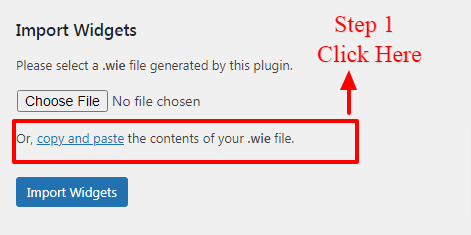
The quickest workaround is to click the copy and paste link below the upload field. A text box will appear for you to copy and paste the contents of your .wie file into.
C. You can open your file in a text editor to copy its contents.
D. Once that is done click ‘ Import Widget ‘ button
How To Manage Posts Content & Categories ?
A. You can manage Posts content under Posts -> All Posts if in-case some of the posts images is not imported successfully due to server error and need to add images manually
B. Can manage posts category under Posts -> Categories
Additional Help & Tutorial :
How to Change Header and Footer Content as well as Other Theme builder templates like 404,post,category,tag etc.. contents?